Someone sends you a 12-page PDF. You’re on your phone, the part you need is somewhere in the middle, and “I’ll read it when I’m at my laptop” is a lie you’ve told before.
Here are the three realistic ways to get from PDF to gist on an iPhone, and where each one breaks down.
Table of contents
Open Table of contents
Method 1: Built-in iOS tools (free, manual)
iOS can do more of this than most people realize:
- Open the PDF in Files or Safari
- Long-press to select text, or use Live Text on a scanned page (point the camera, tap the text icon)
- Copy into Notes and trim it down yourself
Works because: free, on-device, no new apps.
Falls short because: there’s no actual summarization — you’re the summarizer. Selecting text across pages in a PDF on a phone is fiddly, scanned PDFs come out in fragments, and a 12-page document is still 12 pages of you reading it.
Method 2: A chatbot app (ChatGPT, Claude)
Upload the PDF to a chatbot app and ask for a summary.
Works because: genuinely good summaries, and you can ask follow-up questions about the document.
Falls short because: it’s a detour. You need the app and an account, file uploads are gated or rate-limited on free tiers, and the flow is upload → wait → prompt → scroll through a chatty answer. For “what does this document say,” you wanted three sentences, not a conversation. There are also documents — contracts, medical letters — you may not want sitting in a chat history.
Method 3: A dedicated PDF-summary utility
This is the job Textrix was built for. The workflow is exactly two steps:
- Upload the PDF — text extraction happens on-device via Apple’s PDFKit
- Tap Summarize — you get a 3-sentence summary: no bullet points, no preamble, just the load-bearing claims
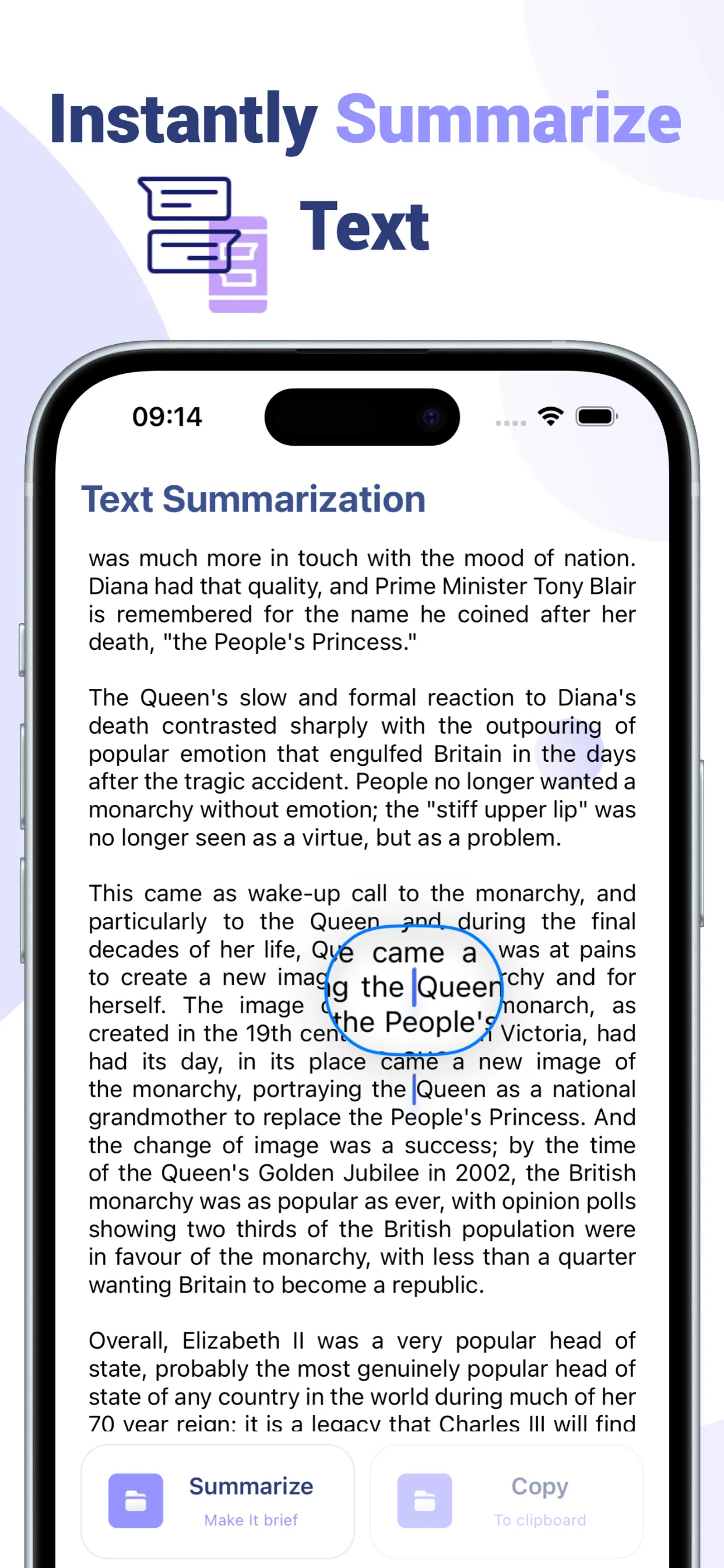
The extracted text lands in an editor first, so you can also trim to just the section you care about before summarizing — or go the other way and rephrase the summary in any of 30 languages before forwarding it to someone.
A few honest caveats:
- The summarization runs through an AI API, so it needs a network connection (extraction itself is on-device)
- Scanned-image PDFs without a text layer won’t extract — PDFKit needs real text
- Each feature has 2 free uses; unlimited use is a subscription ($2.99/week or $9.99/month)

Which one should you pick?
- Short PDF, you just need one passage → built-in selection and Live Text, free
- You want to interrogate a long document with follow-up questions → a chatbot app
- You regularly get PDFs and want the gist in under a minute → a dedicated tool like Textrix removes every step except “upload, tap”
The pattern worth noticing: the built-in tools give you the text, chatbots give you a conversation, and a purpose-built utility gives you the answer — three sentences, copy, done.