You hit a paragraph in a physical book worth keeping. Photographing it feels productive, but six months later that photo is sediment in your camera roll between a parking-spot reminder and someone’s Wi-Fi password.
Getting the text out is easy on Android — keeping it somewhere useful is the part most workflows fumble. Here are the three real options.
Table of contents
Open Table of contents
Method 1: Google Lens (free, fastest for one-offs)
Open the camera or Google Lens, point at the page, tap Text, select, copy.
Works because: it’s free, already on your phone, and Google’s OCR is excellent — it handles slightly curved pages and mediocre lighting better than most.
Falls short because: the output’s final destination is your clipboard. Where does it go next? A note app, a random doc, a message to yourself. There’s no library, no record of which book or page it came from, and nothing connecting this week’s capture to last month’s. Great OCR, zero memory.
Method 2: Google Drive scan + Docs OCR
The Drive app’s scan button captures pages as a PDF; opening a scanned image with Google Docs runs OCR on it.
Works because: free, produces a file rather than a clipboard ghost, decent for archiving whole documents.
Falls short because: it’s built for documents, not books. The OCR step is a separate, clunky action per file, the output is a Doc with formatting debris, and organizing fifty captures across ten books means building and maintaining your own folder taxonomy by hand.
Method 3: A dedicated book scanner with a library
This is what Booksum is for. The difference isn’t the OCR — it’s everything after:
- Scan the page — on-device OCR extracts the text
- It files itself — captures attach to the book (scan the ISBN barcode and the title, author, and cover fill in automatically)
- It stays useful — full-text search across everything you’ve ever captured, AI summaries of passages, and highlights that become spaced-repetition flashcards
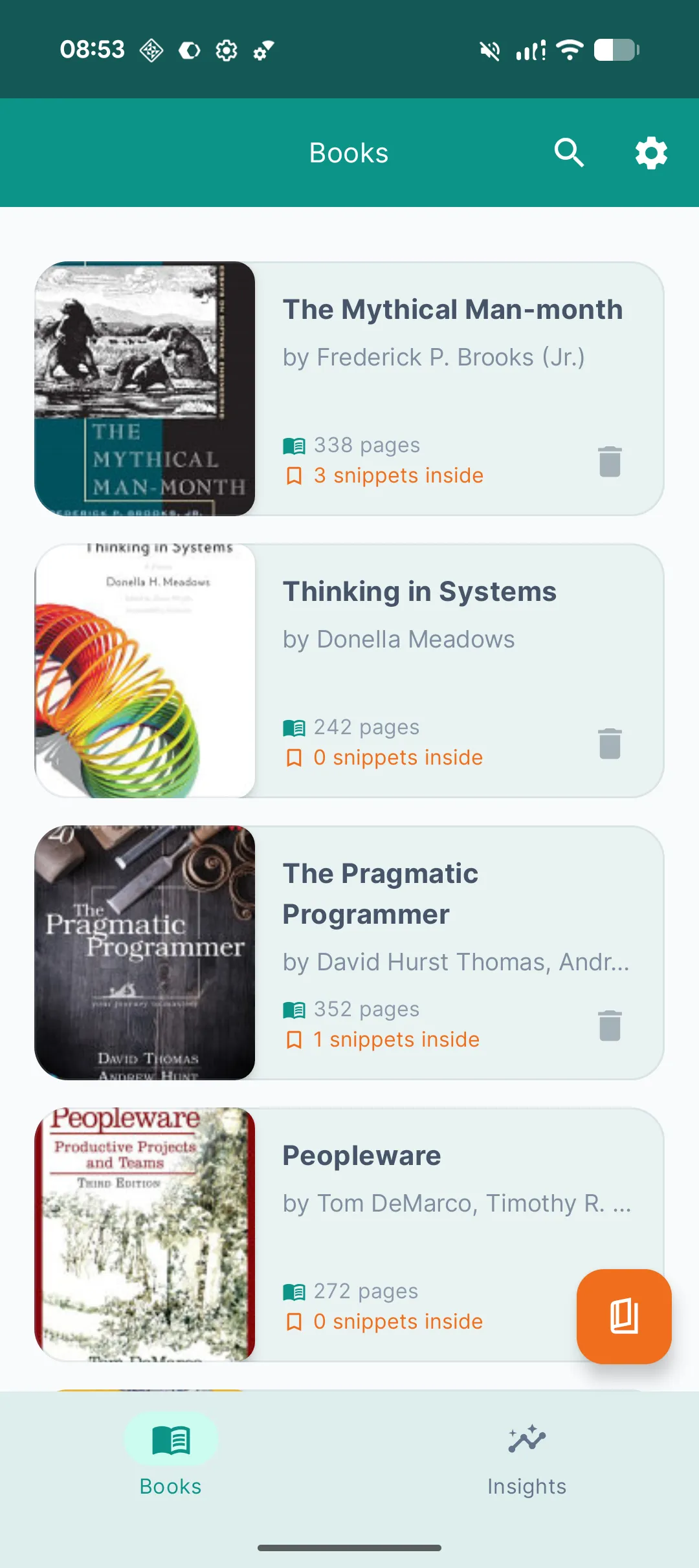
That last part is the actual point. The reason you photographed the paragraph was to remember it — and rereading captures doesn’t do that. Spaced repetition does: Booksum resurfaces your highlights as flashcards on a schedule, so the ideas survive longer than the camera-roll photo would have.
Honest caveats:
- OCR quality depends on your capture — flat page, decent light (true of every method here)
- The free tier covers casual use; Premium ($9.99/month, $49.99/year, or $99.99 lifetime, 7-day trial) unlocks unlimited scanning, AI summaries, and flashcards
- Android only — iOS readers, your move is Lens-equivalent Live Text plus a notes app, for now

Which one should you pick?
- One quote, right now, into a message → Google Lens, no contest
- Archiving a stack of loose documents → Drive scan
- You read physical books and want what you capture to stay searchable — and stick → a purpose-built library like Booksum
The test is simple: if you can’t find the passage you captured three books ago in under ten seconds, you don’t have a system — you have a camera roll.